Building MonoDevelop for the PINE64

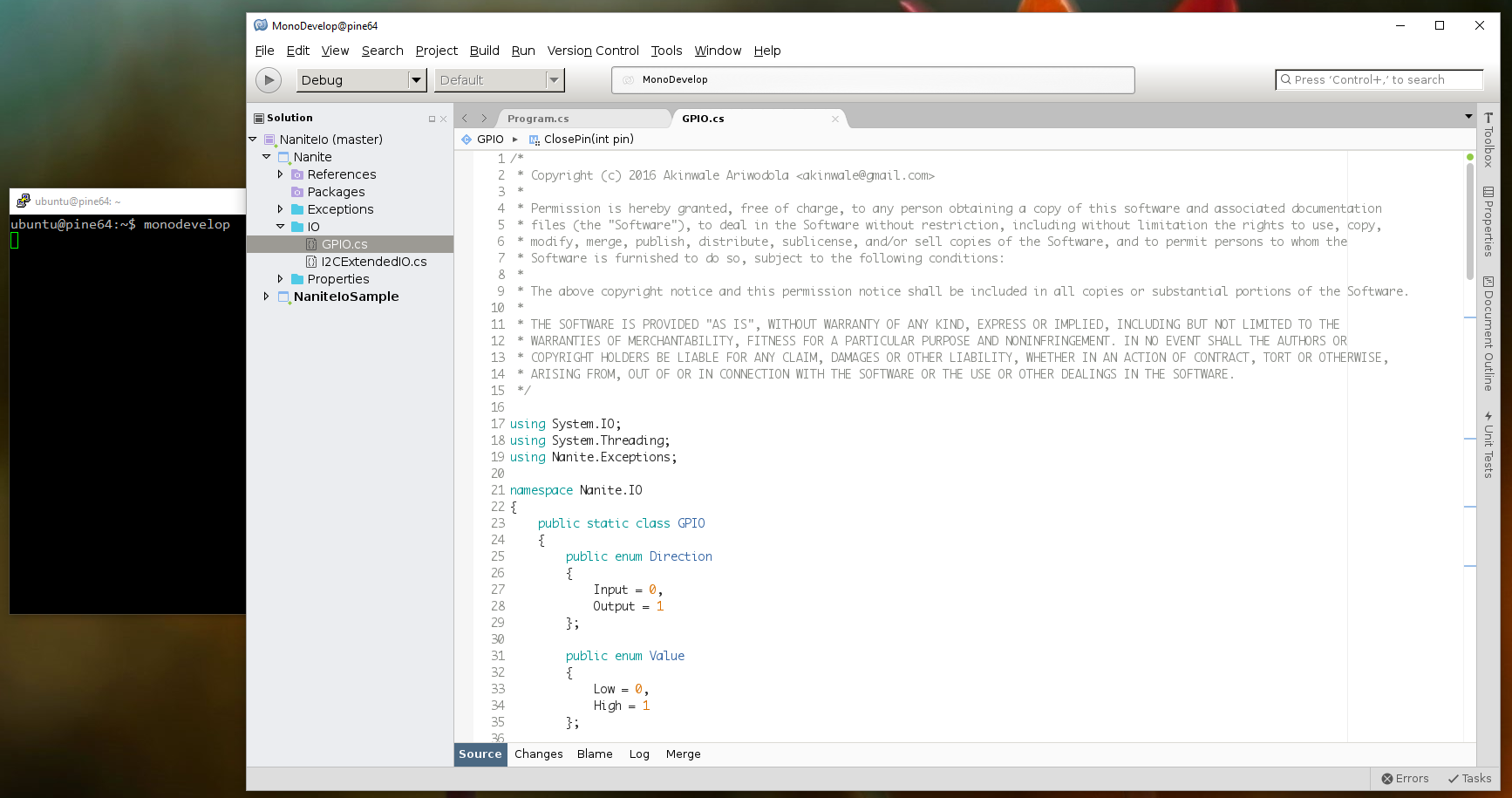
MonoDevelop running on the PINE64 using SSH X11 forwarding

4 Dec 2017 Update
These instructions will not work with the latest versions of Mono and MonoDevelop from github. I tried compiling from scratch on a new image, and they will work with the following versions listed below. You can checkout the specific tags immediately after cloning the corresponding repositories before you start building.
Mono 4.8.1.0 – git checkout tags/mono-4.8.1.0
MonoDevelop 6.1.0.5441 – git checkout tags/monodevelop-6.1.0.5441

My PINE64 is here and the first thing I decided to do was build MonoDevelop which I’ll use to manage C# projects, since most of the code I’ll be writing for my autonomous project will be in C#. I’m using the longsleep Ubuntu Xenial image as a base, so these instructions assume that this is what you have installed. You can adapt as required based on your distro.

Of course, the easiest way to get MonoDevelop installed is by using the package manager. The version is also fairly recent (4.2.1.102), so you can choose skip the rest of this post if you prefer. Simply run the apt-get install command and all required dependencies will also be automatically installed.

sudo apt-get install monodevelop

Most of the steps will be similar to the MonoDevelop for Raspberry Pi build post, but we’ll be skipping fsharp altogether. I cloned the fsharp repository but the make process failed due to the following error:

* Assertion at mini-arm64.c:936, condition `arm_is_bl_disp ((code), (target))' not met

F# is only required for the fsharpbindings extension and I don’t plan on using that. There appears to be an fsharp package which you can install using apt, but this will also install the mono 4.2.1 dependencies. If you’re fine with using an older version of mono and would still like to build MonoDevelop, then you can also skip the steps up till Build MonoDevelop.

So let’s get started!

Install all prerequisites
Git is required to clone the source repositories for Mono, MonoDevelop and dependencies. The other packages are required for building MonoDevelop dependencies from source.

sudo apt-get install autoconf automake build-essential cmake gettext git libgdiplus libglade2-dev libgnome2-dev libgnomecanvas2-dev libgnomeui-dev libgtk2.0-dev libssh2-1-dev libtool libtool-bin


Pre-build: NuGet certificates
The MonoDevelop build process makes use of NuGet at certain points. You will need to import certificates into your certificate store using the following commands.

sudo mozroots --import --sync
sudo certmgr -ssl -m https://nuget.org


Build Mono
This step is fairly straightforward. Clone the mono source repository and run the build process.

git clone https://github.com/mono/mono
./autogen.sh --prefix=/usr
make get-monolite-latest
make -j 4
sudo make install

This build will take a while. If you wish to run the mono and mcs test suites, you can do a make check before make install.
 

Build MonoDevelop dependencies
MonoDevelop requires gtk-sharp and gnome-sharp to be installed on the system. To build gtk-sharp.

git clone -b gtk-sharp-2-12-branch --single-branch https://github.com/mono/gtk-sharp
cd gtk-sharp
./bootstrap-2.12 --prefix=/usr
make -j 4
sudo make install

gnome-sharp follows a similar process.

git clone https://github.com/mono/gnome-sharp
cd gnome-sharp
./bootstrap-2.24 --prefix=/usr
make -j 4
sudo make install

Some reference PCL Assemblies are required for the build to complete. You will need to build a deb package and install following the instructions below.

git clone http://github.com/directhex/xamarin-referenceassemblies-pcl
cd xamarin-referenceassemblies-pcl/debian
nano control

Remove mono-xbuild from the list of dependencies in the control file, save and close. Then proceed with the following commands.

cd ..
debuild -i -us -uc -b
cd ..
sudo dpkg -i referenceassemblies-pcl_2014.04.14-1_all.deb


Build MonoDevelop
First, we clone the monodevelop repository and initialise the submodules using git.

git clone https://github.com/mono/monodevelop
cd monodevelop
git submodule update --init --recursive

Next, we remove references to fsharp. The assumed working directory for these steps is the top-level monodevelop source directory.

cd main
nano Makefile.am

Remove the external/fsharpbinding/MonoDevelop.FSharpBinding/FSharpBinding.addin.xml \ line, save the file and close.

rm -r external/fsharpbinding
nano configure.in

Comment out or remove the following lines in the file and save your changes. To comment out the lines, simply prefix each line with the # character.

if test "x$FSHARPC" = "x" ; then
  AC_MSG_ERROR([Can't find "fsharpc" in your PATH])
fi

Then we can go on to build the IDE.

cd ..
./configure --prefix=/usr --profile=stable
make -j 4
sudo make install

You can run mono main/.nuget/NuGet.exe update -self if you get the following error after running make.

Unable to find version '2.8.2' of package 'NuGet.CommandLine'.
Unable to find version '2.6.4' of package 'NUnit.Runners'.

Once the build is successfully completed, you can run the application using monodevelop. If you have X11 forwarding enabled for your SSH session, you should see the MonoDevelop IDE on your screen after a couple of seconds.

MonoDevelop running on the PINE64 using SSH X11 forwarding

MonoDevelop running on the PINE64 using SSH X11 forwarding

Building MonoDevelop for the Raspberry Pi 3

4 Dec 2017 Update
I ran into some issues building the latest github versions of Mono and MonoDevelop on the PINE64, and I guess the same may apply here. If you encounter any difficulty building either Mono or MonoDevelop, you can try using the specific versions listed below. You can checkout the specific tags immediately after cloning the corresponding repositories before you start building.
Mono 4.8.1.0 – git checkout tags/mono-4.8.1.0
MonoDevelop 6.1.0.5441 – git checkout tags/monodevelop-6.1.0.5441

Since I will be using C# for most of my development (with a combination of C for some native system functionality), I decided to go with Mono. This guide is based on the assumption that you’re running the May 2016 Raspbian Jessie Lite image. The easiest way to get MonoDevelop up and running would be to run sudo apt-get install monodevelop which would also handle all the necessary dependencies including the Mono runtime. However, the versions in the repository are pretty old, and I want to be able to make use of .NET 4 features.

Another option for .NET development on Linux is .NET Core. Version 1.0 was officially announced by Microsoft a few days ago, but there aren’t ARM binaries available and I haven’t been able to successfully build it for the Pi, yet.

Git
The Mono project code is hosted on Github, so the first thing to be done is to install git.

sudo apt-get install git

Build Mono
Obtain the source code from the Github repository using the command

git clone https://github.com/mono/mono

Then install the Mono build process prerequisites.

sudo apt-get install autoconf autotool libtool libtool-bin

You can follow the build instructions in the README.md for the repository at https://github.com/mono/mono/blob/master/README.md. To summarise, change to the source root directory (cd mono) and run the following commands.

./autogen.sh --prefix=/usr
make get-monolite-latest
make
sudo make install

If you wish to run the mono and mcs test suites, you can do a make check before make install. The build will take quite a while, so you have to be patient. I didn't time my build, but my best guess would be about 3 to 4 hours.

Build FSharp
MonoDevelop apparently requires the F# compiler to be installed. First thing to do is to import trusted root certificates required by the NuGet package manager into the machine store. The NuGet package manager retrieves certain required packages as part of the build process, so this is required.

sudo mozroots --import --sync
sudo certmgr -ssl -m https://nuget.org

Next, we clone the FSharp git repository and build.

git clone https://github.com/fsharp/fsharp
cd fsharp
./autogen.sh --prefix=/usr
make
sudo make install

Build additional MonoDevelop dependencies
MonoDevelop also requires gtk-sharp and gnome-sharp to be installed on the system. The first step is to install the rest of the apt dependencies for all three packages.

sudo apt-get install cmake libgtk2.0-dev libglade2-dev libgnomecanvas2-dev libgnome2-dev libgnomeui-dev libssh2-1-dev devscripts

devscripts will be used to create a package of PCL Assemblies which is required for the MonoDevelop build process.

Once the dependencies have been installed, gtk-sharp should be built first and then gnome-sharp.

To build gtk-sharp

git clone -b gtk-sharp-2-12-branch --single-branch https://github.com/mono/gtk-sharp
cd gtk-sharp
./bootstrap-2.12 --prefix=/usr
make
sudo make install

And gnome-sharp

git clone https://github.com/mono/gnome-sharp
cd gnome-sharp
./bootstrap-2.24 --prefix=/usr
make
sudo make install

Build MonoDevelop
If you made it through all of that, you can finally proceed to build MonoDevelop. But there are a few caveats which we'll cover in a bit.

git clone https://github.com/mono/monodevelop
cd monodevelop
git submodule update --init --recursive
./configure --prefix=/usr --profile=stable --disable-nls

The first error I encountered after I running make was an issue with NuGet not finding a number of packages. To fix this while your current directory is the monodevelop directory, run the following commands and then run make again (if you've run it previously).

cd main/.nuget
mono NuGet.exe update -self
cd ../../

The next error stated that certain PCL Assemblies were missing. To sort this out

git clone http://github.com/directhex/xamarin-referenceassemblies-pcl
cd xamarin-referenceassemblies-pcl/debian
nano control

Remove mono-xbuild from the list of dependencies in the control file, save and close. Then continue with the following commands.

cd ..
debuild -i -us -uc -b
cd ..
sudo dpkg -i referenceassemblies-pcl_2014.04.14-1_all.deb

The final error had to do with the fsharpbinding regarding missing references in a particular assembly. Since I don't need the F# bindings, and it's not a required feature, I removed it from the build process using the following steps (assuming the monodevelop source directory is the working directory).

cd main
nano Makefile.am

Remove the external/fsharpbinding/MonoDevelop.FSharpBinding/FSharpBinding.addin.xml \ line, save the file and close.

rm -r external/fsharpbinding
cd ../

Finally, you can build and install.

make
sudo make install

This build will also take a bit of time, so sit back, relax and rest easy. Once the installation is complete, you can simply run it by typing monodevelop at the command line (assuming you have X11 forwarding enabled in your SSH session).